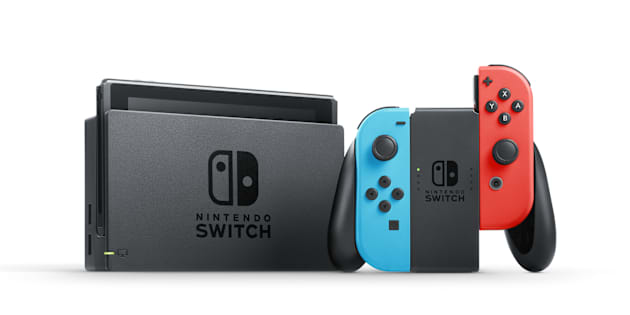
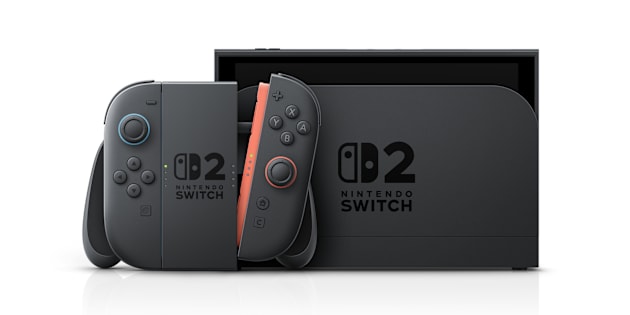
Parental Controls for Nintendo Switch 2 and Nintendo Switch Overview/FAQ
Information
The parental controls for Nintendo Switch 2 and Nintendo Switch allow you to manage which features and games your child can use on their console. Download the Nintendo Switch Parental Controls smart device application and link it to your Nintendo Switch 2 or Nintendo Switch console(s) to access the most robust control options, including options required for younger players to use GameChat on Nintendo Switch 2. Certain restrictions can also be set directly on the console without using the app.
Key Points
Parental controls can restrict the download and use of certain content, set play time limits, and restrict the use of certain features on Nintendo Switch 2 and Nintendo Switch.
Parental controls can also be managed on your smart device, via the Nintendo Switch Parental Controls application. Some features (such as play time limits) can only be managed through the smart device application.
For children under the age of 16 and supervised users to use GameChat on a Nintendo Switch 2 console, the Nintendo Switch Parental Controls app must be linked to the console and the parent must set up additional controls specific to this feature.
Please note that an internet connection is required to use the smart device app with both Nintendo Switch 2 and Nintendo Switch.
Parental controls are set for the console - not the user. Once set, the same restrictions will be in place for everyone that uses the console.
The parent/guardian chooses a 4-digit PIN when setting up the parental controls. The PIN will be used in the future whenever a restriction needs to be bypassed or changed.
You can also set restrictions for Nintendo eShop through your Nintendo Account.
FAQ:
Parents can download and use the Nintendo Switch Parental Controls app (available for free on iOS and Android devices) for the most extensive control options, which include the settings on the console and settings exclusive to the app. Using the app, parents can set daily limits for how long the console can be played, as well as view which games have been played on the console and for how long. Parents can also set a bedtime and morning start time, such as no gaming allowed between 21:00 and 08:00. Restrictions for GameChat on Nintendo Switch 2 are also handled through the app, allowing parents to manage which friends their child can chat with, enable video chat with specific camera field of view options or restrict video chat for each session, and review their child's GameChat history to see who they chatted with and for how long.
Parents can use parental controls on the console to set restrictions on game content and free communication with others. On Nintendo Switch consoles, settings can also be configured for sharing screenshots and videos to social media.
Parents can choose from three preset options (Young Child, Child, or Teen) or create custom settings.
Nintendo eShop purchases can be restricted through the parent/guardian’s Nintendo Account profile settings on a PC or smart device (accessible by signing in to http://accounts.nintendo.com). You can jump directly to these settings from within the Nintendo Switch Parental Controls app.
The core parental controls (game content restrictions, and limiting in-game communication between players) can be set on Nintendo Switch 2 and Nintendo Switch consoles, and through the Nintendo Switch Parental Controls application. Social media posting restrictions can also be set for Nintendo Switch (posting to social media is not available on Nintendo Switch 2).
With the smart device application, you can also set play time limits, view the games that have been played on the console, and even set a daily cut-off time.
Additionally, Nintendo eShop purchases can be restricted through the parent / guardian’s Nintendo Account profile settings on a PC or smart device (accessible by signing in to http://accounts.nintendo.com). You can jump directly to these settings from within the Nintendo Switch Parental Controls app.