How to Set Nintendo eShop Restrictions
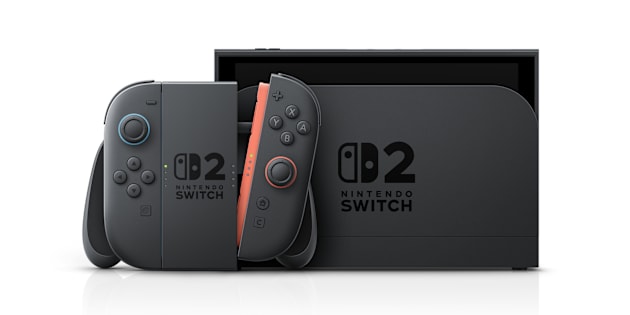
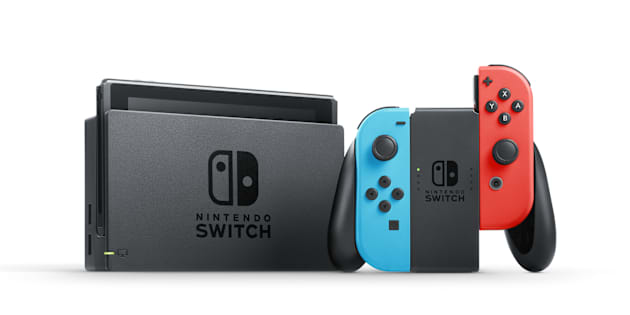
Learn how to manage purchase restrictions and viewable Nintendo eShop content for the Nintendo Switch 2 and Nintendo Switch consoles, as well as on the official Nintendo website.
Important: If you are not yet supervising the Nintendo Account you want to set restrictions for, you will need to do one of the following:
Create a new Nintendo Account for the child (age 12 and under)
Associate their existing Nintendo Account with yours (age 13 and older)
Set the Nintendo Account as supervised (if it already exists within your family group)
Additional Information:
Restrictions for purchases on Nintendo eShop for Nintendo Switch 2 and Nintendo Switch and the official
Nintendo website can only be set through a parent/guardian’s Nintendo Account in a Nintendo Account family group.
A parent/guardian can manage purchase restrictions, including automatic renewal, for any Nintendo Accounts that have been added to or created by the parent/guardian’s Nintendo Account.
Complete These Steps:
Sign in to your existing parent/guardian Nintendo Account to access your Nintendo Account settings.
Select Family Group.
A list of all supervised accounts in the family group will appear on the screen. Select the Nintendo Account for which you want to manage restrictions.
Select each setting that you want to adjust:
Spending Restrictions
- Tick the box to disable purchases and automatic renewal options on Nintendo eShop for Nintendo Switch 2, Nintendo Switch and the official Nintendo website.
Age-Based Purchase Restrictions
- Tick the box to restrict the content that can be seen on Nintendo eShop for Nintendo Switch 2 and Nintendo Switch. Content will automatically be restricted based on the player’s age.
Select Save changes to confirm your changes.