What do I need to use GameChat?
GameChat is a Nintendo Switch 2 feature, so the first thing you'll need is a Nintendo Switch 2 console. A persistent internet connection is required to use GameChat. A connection test is performed during the initial setup process to confirm that your network environment is able to support GameChat.
For users under the age of 16, a parent or guardian will need to set up a few things before GameChat can be used, including linking the Nintendo Switch Parental Controls smart device app to your Nintendo Switch 2 console.
A phone number must be registered to your Nintendo Account to use GameChat. For users under the age of 16, a parent or guardian must register a phone number to their own Nintendo Account on their child’s behalf.
In order to chat with others, you'll need users on your friend list who you have approved chatting for and who have also approved you on their end.
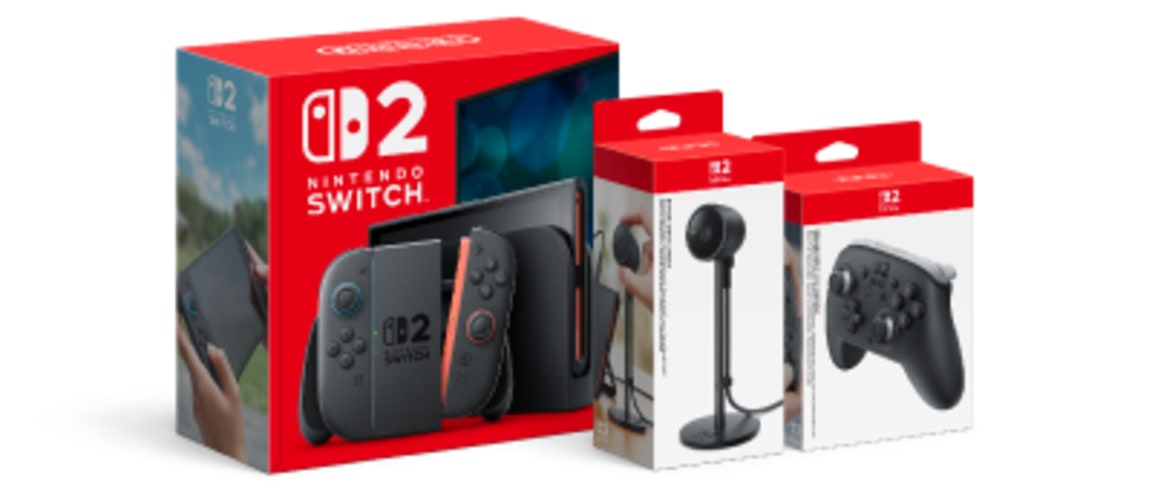
To use video chat, you’ll need a compatible USB camera, such as the Nintendo Switch 2 camera (sold separately). Typical third-party cameras should also work with GameChat, but compatibility cannot be guaranteed. Voice chat can be used via the microphone built into the Nintendo Switch 2 console.
Lastly, be sure to adhere to the Nintendo Community Guidelines to keep our online spaces safe and fun for everyone.
How do I get started with GameChat?
Please follow our guidance on first-time setup and how to start or join a GameChat session. For users under the age of 16, please have a parent or guardian join you during the setup process. They'll be able to follow our GameChat guide for parents and guardians.
How does GameChat work?
Everything starts with the GameChat menu on the Nintendo Switch 2 console, which can be accessed either from the icon on the HOME Menu or by pressing the C Button on the Joy-Con 2 (R), the Nintendo Switch 2 Pro Controller or the Nintendo GameCube controller. Once you’ve gone through the initial GameChat setup, you can create your own GameChat session and invite friends to it, or join a session you've been invited to. To invite or be invited, both sides must manually approve each other to use GameChat together. When creating a GameChat session, you can only invite users on your friend list that you have approved chatting for. Those users must have also approved you on their end to receive your invitation. Approval settings can be changed at any time. For users under the age of 16, a parent or guardian will need to be involved in this process using the Nintendo Switch Parental Controls smart device app. While in a GameChat session, users can share their screen, use voice chat and even connect a supported USB camera (sold separately) to use video chat. Up to twelve total users can participate in a single GameChat session, and up to four can be sharing their screen or video with everyone else at any given time. You can also use the GameChat menu to change the layout of your own screen, focus on another user’s screen, adjust individual users’ volume levels and access various other settings.
How do I adjust GameChat settings, and what can be adjusted?
You can access GameChat settings by opening the GameChat menu and selecting Settings. You can manage your chat-approved friends while not in a GameChat session. Other settings, such as screen size, audio and video settings and accessibility options, can be adjusted while you’re actively inside a GameChat session.
I’m a parent or guardian. How can I be sure my child is safe while interacting with people online?
Please review our guide for parents and guardians on how to manage your child’s GameChat experience. GameChat is designed with a variety of safety measures in mind for users of all ages, and additional features are included for parents and guardians to get involved.
If I start a GameChat session and want to add another friend, how can I add them?
You can invite more friends to your GameChat session in the GameChat Settings.
Does GameChat include any accessibility features?
GameChat includes both a speech to text transcription feature and a text to speech message feature. These can be enabled in System Settings, as well as in Settings while in a GameChat session. With speech to text enabled, a transcribed log of everyone’s speech will appear on the side of your screen like a chat box. Text to speech allows you to type messages which will be read aloud to other users. A standard USB keyboard can be used with the Nintendo Switch 2 console for additional ease of use while entering messages. Both of these features are in addition to other standard accessibility features on the Nintendo Switch 2 console, such as screen reading settings, colour display options and more.
I had an uncomfortable experience with someone while using GameChat. Is there anything I can do?
You can report users for bad behaviour directly within a GameChat session, as well as after leaving a session. If you report a user while in a session, you will leave the session automatically. Users who are found to be in violation of our code of conduct or the GameChat Terms of Use may have their access to GameChat restricted or incur more serious penalties. If you don’t want to report the other user but still don’t want to chat with them again, there are a few other options.
If the user is on your friend list and you had approved them for chatting, you can revoke that approval and will no longer receive invites from them. You can also remove them from your friend list.
You can block the user, which will prevent you from joining any GameChat session they are invited to and will also prevent them from playing with you in online games.
For younger users, we recommend talking with your parent or guardian so that they can help you handle the experience and adjust these settings to protect you in the future.
How do I use voice chat with others during GameChat?
While in a GameChat session, press the C Button to open the GameChat menu. From there, you can select the microphone icon to unmute yourself and begin talking with others in the session. The Nintendo Switch 2 console includes a built-in microphone designed for use with GameChat. In addition to muting or unmuting yourself, you can adjust the volume of other users in the session. If you run into issues using voice chat, you may find the following articles helpful:
How do I use a camera to video chat during GameChat?
First, you’ll need to connect a compatible USB camera, such as the Nintendo Switch 2 camera (sold separately). USB cameras with a USB-C connector can be connected directly to the Nintendo Switch 2 console, while standard USB cameras can be connected to the Nintendo Switch 2 dock. While in a GameChat session, press the C Button to open the GameChat menu. From there, you can select the video camera icon to enable your video. In Settings, you can choose how much of your camera feed is visible to other users. You can select to display only your face, your face and body but not your background, or the full camera view. For users under the age of 16, a parent or guardian will need to approve video chat usage through the Nintendo Switch Parental Controls app each time you want to use it in a new GameChat session. They can also select which camera visibility options can be chosen on-device when using video chat. Please note that only four users in the GameChat session can share their video and/or screen at one time. If you run into issues using video chat, you may find the following articles helpful:
Use CameraPlay, Character Avatars, and AR accessories with supported software during GameChat
Some games support one or more video chat features for GameChat:
CameraPlay allows you to see players' faces in-game while you play. (Certain games also support CameraPlay in local multiplayer, outside of GameChat.)
Character Avatars allow you to appear as a character from the game, mirroring your expressions and movements.
AR accessories allow you to add fun accessories or effects from the game to your camera feed.
First, you’ll need to plug in a compatible USB camera, such as the Nintendo Switch 2 camera (sold separately). USB-C cameras can be plugged directly into the Nintendo Switch 2 console, while standard USB cameras can be plugged into the Nintendo Switch 2 dock. For details on how to use these features in a particular game, search for articles specific to that game. A few examples are included below:
How do I share my screen during GameChat?
While in a GameChat session, press the C Button to open the GameChat menu. From there, you can select the screen icon with an arrow to share your screen. Please note that only four users in a session can share their video and/or screen at one time. Screen sharing may be automatically disabled at times, such as when entering a password or payment information. Software age ratings and Parental Controls also affect whether your screen is visible on another player’s Nintendo Switch 2 console and whether you can view another player’s shared screen. If you run into issues viewing another player’s shared screen, you may find the following article helpful:
Can I choose not to see other people’s screens and instead view my gameplay on a full screen while using GameChat?
GameChat allows you to view your gameplay in full screen while continuing to hear and chat with others, if desired.While in a GameChat session, press the C Button to open the GameChat menu. From there, select the Screen Size icon. To hide the other members in the room and view your gameplay only, select the Full-Screen option. In the GameChat Settings for Screen Layout, you can also choose to display or hide the names of active speakers in a specific corner of your screen.
Can I just watch another person's screen without playing anything myself?
Yes. While in a GameChat session, press the C Button to open the GameChat menu. From there, you can select a user who is sharing their screen and enlarge it. Controls for your own screen will be disabled while another player’s screen is in focus. You can adjust the layout through the GameChat menu when you want to use your screen again.
How do I use GameShare via GameChat?
For more information about GameShare, please read our overview.