How to Use Character Avatars and AR accessories in GameChat (Star Fox)
Follow these steps to enable Character Avatars and AR accessories for your camera video feed while playing Star Fox in a GameChat room.
Before you start
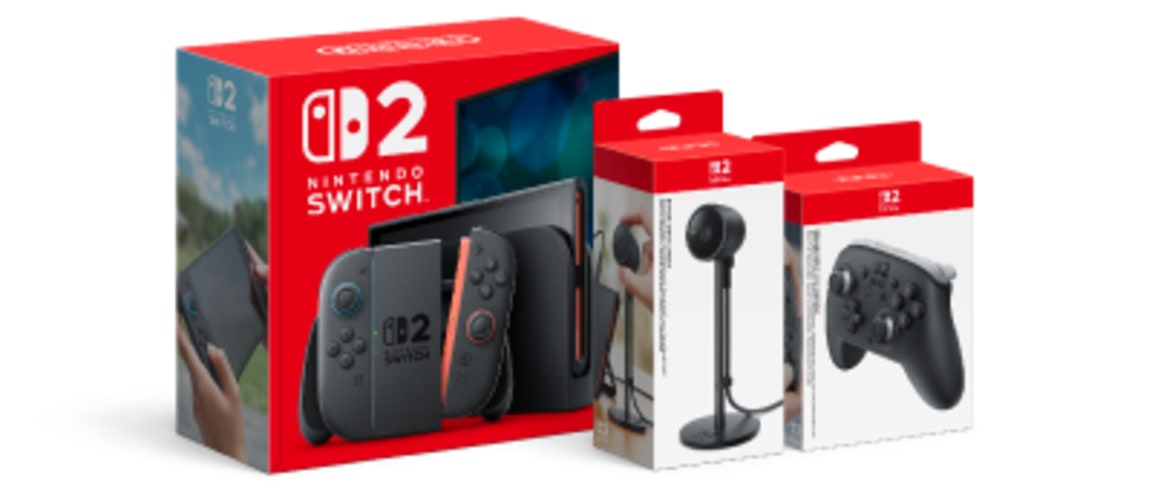
You must connect a compatible USB camera, such as the Nintendo Switch 2 Camera, to enable Character Avatars and AR accessories.
Complete these steps
Start Star Fox from the HOME Menu.
Press the A Button on the title screen.
On the main menu, navigate upwards and select the Avatar Settings option.
Scroll down to find the Character Avatar or AR Accessory you want to use in GameChat, then press the A Button to select it. A preview will be shown to the right.
You can also press the X Button to turn the background on or off.
Press the B Button to return to the main menu.
While in a GameChat room, turn on your camera and the video feed will be adjusted based on your selection.
Note: If you close the game while still using GameChat, your camera feed will be turned off