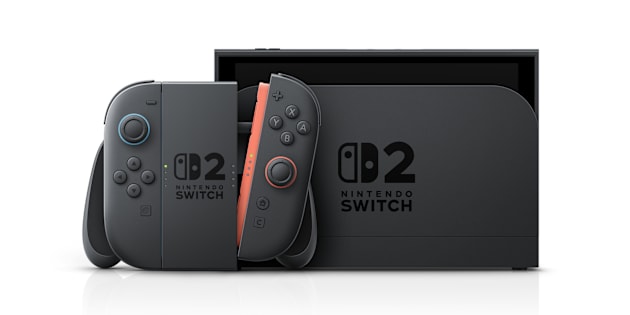

How to Delete Content on Nintendo Switch 2
Steps for deleting software, save data, screenshots and videos, and performing a system initialization on Nintendo Switch 2.

Steps for deleting software, save data, screenshots and videos, and performing a system initialization on Nintendo Switch 2.
Shop online
Earn My Nintendo points
Save a wishlist
Deleting the software will not delete your save data.
You can play deleted software again by redownloading it.
You cannot delete DLC or Update data separately from the software.
Find the software you want to delete on the HOME Menu.
Press the + or - Button top open the Software Options menu.
Select Manage Software.
Select Delete Software.
Select Delete on the confirmation message.
Deleting the software will not delete your save data.
You can play deleted software again by redownloading it.
You cannot delete DLC or Update data separately from the software.
Select System Settings from the HOME Menu.
Select Data Management.
Select Quick Delete.
Choose the software you want to delete from the list.
Select Delete.
Select System Settings from the HOME Menu.
Select Data Management.
Select Delete Save Data.
Choose the software you want to delete the save data for from the list.
Choose the user you want to delete the save data for.
Some software, like Animal Crossing: New Horizons, may share save data between all other users and won't be able to be deleted per user.
Select Delete All Save Data for This Software to delete this save data. It will delete the save data for the software for all users.
Review the pop up screen information.
Select Delete Save Data.
Select Album from the HOME Menu.
Choose the screenshot/video you want to delete.
Press the A Button to display the options.
Select Delete.
Select Album from the HOME Menu.
Select Quick Action on the left side of the screen.
Select Delete.
Choose the screenshots/videos you want to delete.
Select Delete.
Select Confirm.
Select System Settings from the HOME Menu.
Select Data Management.
Select Manage Screenshots and Videos.
Select the storage location that contains the data you want to delete; System Memory or microSD Express card.
Select Delete All Screenshots and Videos.
Select Confirm.
These steps will not delete the media from the system memory or microSD Express card.
Select Album from the HOME Menu.
Select Upload Settings on the left side of the screen.
Select the User whose data you want to delete.
Select Delete Uploads.
Select Delete Uploaded Data. All screenshots and videos uploaded to the server will be deleted.
Select Delete.
Important: Please review the information about what will be lost when you perform a console initialization. Deleted data cannot be recovered.
The following will be lost when you delete all data from the console:
All data in the system memory, including software, save data, screenshots, and user information will be deleted, restoring the console to factory settings.
If you have save data backups stored to the Save Data Cloud service, you will be able to download them once you create a new user and link your Nintendo Account to it.
All software saved on the microSD card, except for screenshots, will become unusable. (Data on the microSD card will not be deleted.)
Any Nintendo Accounts linked to the console will not be deleted, but they will be unlinked from the console. After initializing the console, you can create a new user and link to it your Nintendo Account.
Your Nintendo Account contains your Nintendo eShop purchase history and balance. By re-linking your Nintendo Account after initializing the console (to the same console or a different one), it is possible to re-download any software or DLC purchased using that account.
If you are not connected to the internet while initializing the console, it will remain registered as your primary console.
Select System Settings on the HOME Menu.
Select System.
Select Data-Clear Options.
If a Parental Control PIN has been set for the console, you will be prompted to enter it to proceed.
If you forgot your PIN, we have steps for how to locate or reset it.
Select Restore Factory Settings to delete all data in the system memory.
Read through the information on the screen, then select Next to continue.
Select Next.
The console will attempt to connect to the internet to unlink any Nintendo Accounts on the console. If it's unable to connect, you can skip unlinking the accounts and deregister the console later.
Select Next.
Select Cancel.
Select Continue.
Select Restore Factory Settings to complete the process.