How to Transfer an Island to Another Nintendo Switch 2 or Nintendo Switch Console (Animal Crossing: New Horizons)
In this article, you’ll learn how to transfer an entire island and all residents in Animal Crossing: New Horizons to another Nintendo Switch 2 or Nintendo Switch console.
Important
The island will no longer be available to visit on the source console after transferring. If you would rather only transfer individual residents (not including the island's Resident Representative) to a separate island on the target console, see our steps on How to Transfer an Individual Resident to a New Island.
Any Animal Crossing: New Horizons – Happy Home Paradise save data is also transferred with this process. The DLC must be downloaded on the target console before the DLC content can be accessed.
Before you start
You must have both the source and target consoles available to transfer an island. Flight Mode must be turned off or be set with Wi-Fi enabled on both Nintendo Switch 2 or Nintendo Switch consoles.
If there is already save data for Animal Crossing: New Horizons on the target console, it must be deleted from that Nintendo Switch 2 or Nintendo Switch console in order to complete a transfer.
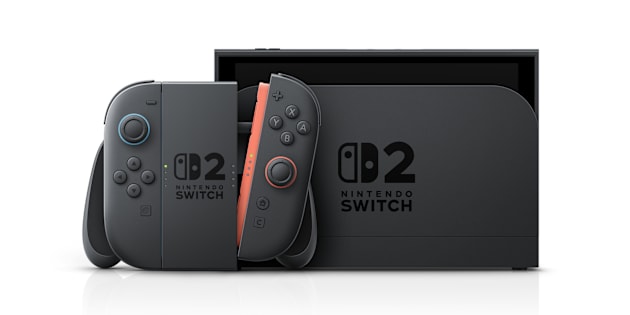
Will the target (new) console be completely replacing the source (original) console in your household?
Follow these steps if you will no longer be using the source console. These steps ensure that all your users and user data will be transferred to the target console.
Which type of console are you transferring from (source console)?
Follow these steps if you will continue to use the source console. The process is the same regardless of whether you transfer the island between two Nintendo Switch 2 consoles, two Nintendo Switch consoles, or between a Nintendo Switch 2 console and a Nintendo Switch console.
Make sure that Animal Crossing: New Horizons is updated to the latest software version on both consoles.
Download the Island Transfer Tool for Animal Crossing: New Horizons on both consoles.
Open the Island Transfer Tool on both consoles.
Follow the on-screen instructions and select Continue, then Let’s begin.
On the source console, select Source.
Select Yes to confirm when the name of your island on the source console is displayed.
If Animal Crossing: New Horizons has not been updated to the latest software version, your console nickname will be displayed instead of your island name.
On the target console, select Target.
On the source console, select Continue. On the target console, select Proceed.
When the target console is detected, select Transfer data on the source console.
When the source console is detected, select Proceed on the target console. The transfer will begin.
When the transfer is complete, a message will appear on both consoles. The save data has now been deleted from the source console and is present on the target console.
Launch Animal Crossing: New Horizons on the target console using the user account you will be using for your resident.
When prompted, select the resident name for the user account. You cannot change the resident associated with your user account later, so be sure it is the correct one.
Repeat this step for any other user accounts and residents that will be playing the game.