Select the child account that you want to update, then select Sign-In and Security Settings.
If this option does not appear, you are not currently signed in as the family group admin. Only the family group admin can adjust Nintendo Account settings for users aged 12 and under in the family group.
Select Edit in the Sign-In ID section.
You may be prompted to confirm your identity by re-entering your password, re-authenticating with a passkey and/or by verifying your email address. If this appears, re-enter the information for the family group admin account or child's account.
If prompted to enter your password, enter it and then select OK.
If you have enabled passkey authentication, you can confirm your identity by signing in using a passkey.
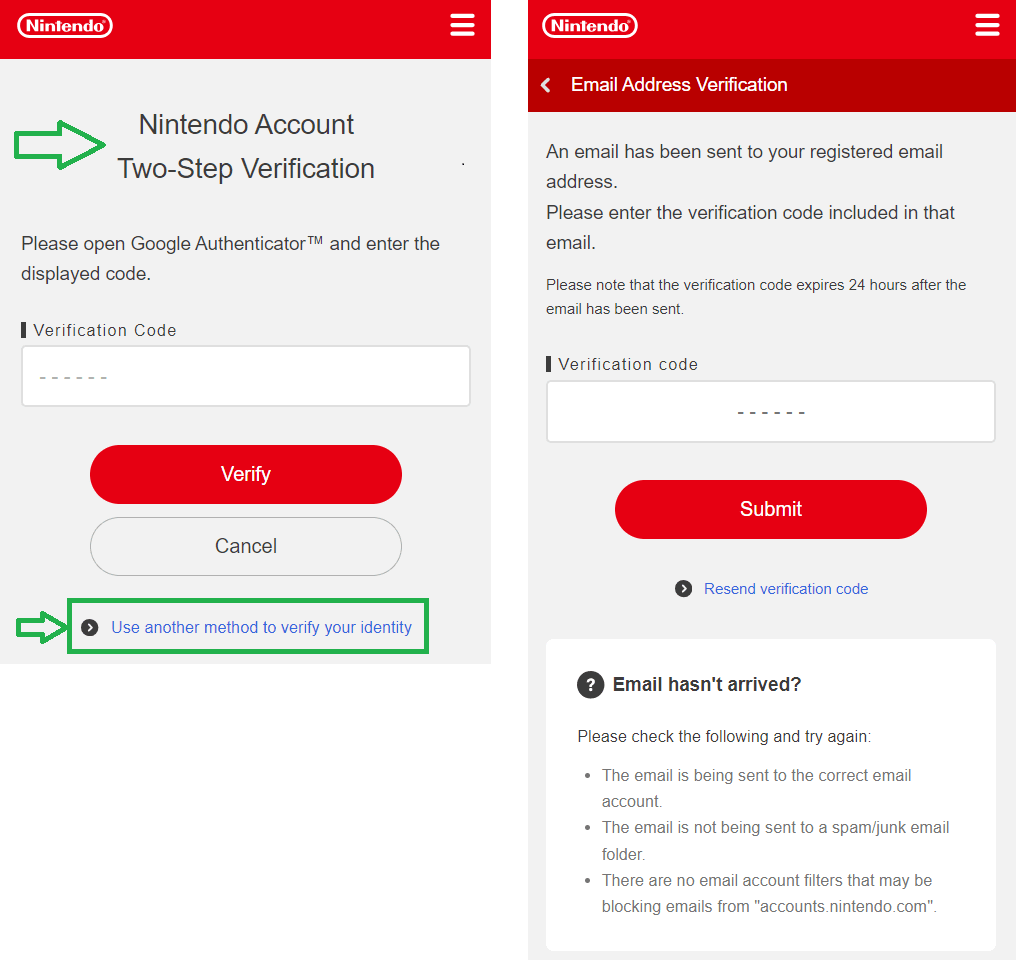
If prompted to verify your email address, select Submit to have an email with a verification code sent to the email address associated with your Nintendo Account. Locate the code in your email and enter it in the "Verification code" box, then select Submit.
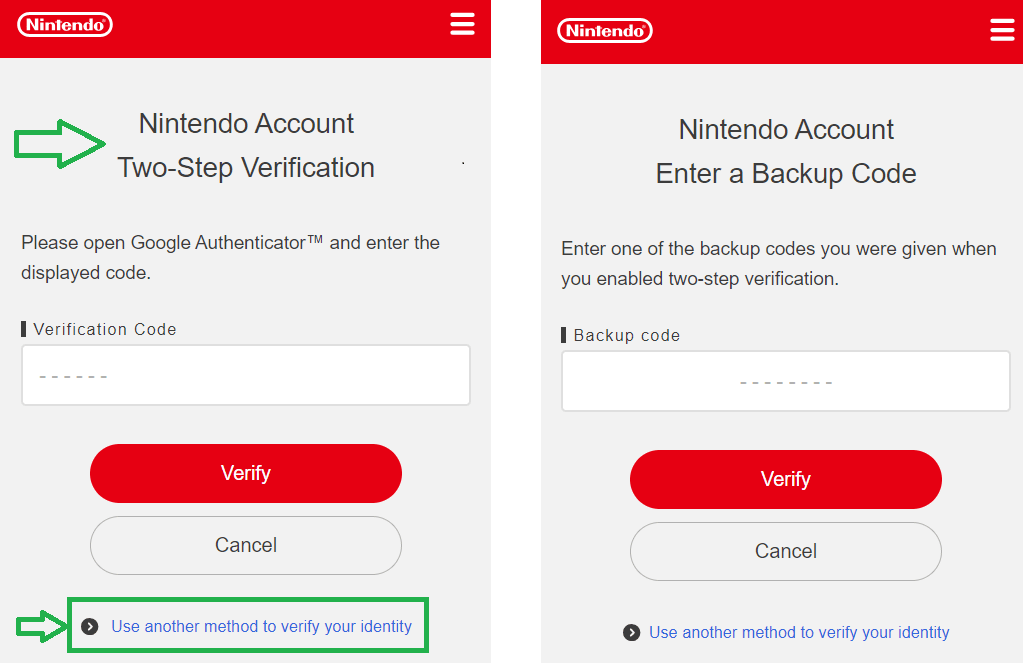
If you have set up 2-step verification, you may be prompted to enter an additional code. Launch the Google Authenticator app on your smart device, enter the code it displays and select Verify.
If you do not currently have access to the app, select Use another method to verify your identity and use one of the backup codes you received when setting up 2-step verification. (You should have copied and saved these in a safe place.)
If you do not currently have access to your backup codes, select Use another method to verify your identity on the "Enter a backup code" screen. An email with a verification code will be sent to the email address associated with your Nintendo Account. Locate the code in your email and enter it in the "Verification code" box, then select Submit.